Open your project and select Project settings. Under My settings, color, calendar privileges, priority, and automatic acceptance apply to your own membership.
- Project color: Choose your display color for the calendar, postbox, and notifications.
- Calendar privileges: Choose Nobody, Admins, or Team to control who can see your availability. This does not share the contents of private calendar entries.
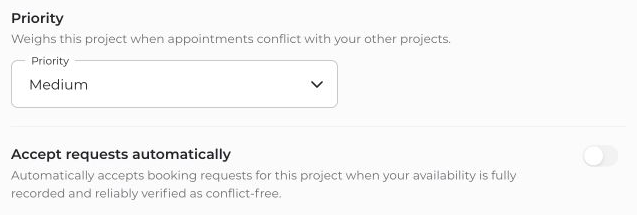
- Priority: Set how this project is weighted when it conflicts with your other projects. This does not automatically move or cancel appointments.
- Use Save to save changes to color, calendar privileges, and priority.
Accept requests automatically
The Accept requests automatically toggle is saved separately. Read the confirmation before enabling it: you confirm that every time you are unavailable is recorded in connactz or your connected calendars.
Automatic acceptance requires an accepted project membership. It occurs only when the automation applies to the request, calendars could be checked reliably, and no conflict exists. A calendar that merely looks empty is not enough.
Incomplete or unreliable calendar data prevents automatic acceptance. Review your availability and respond to pending requests yourself. You can disable the toggle again at any time.


