There are two separate features: Importing private calendars helps check availability. The iCal feed displays connactz entries in your calendar app.
Connect a private calendar
- Open your avatar menu and choose Integrations.
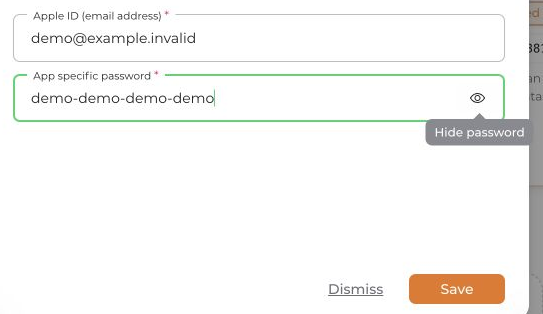
- Under Your calendars, select Google, Outlook, or Apple.
- Allow the requested access for Google or Outlook. For Apple, enter your Apple ID and an app-specific password.
- Check the connection status and the Availability result for each subcalendar:
- Possible conflict: Busy appointments count as possible overlaps.
- Busy: Busy appointments count as firm conflicts.
- No conflict: Appointments from this subcalendar are not loaded for conflict checks or the imported calendar view.
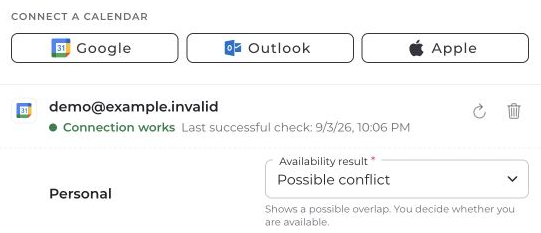
You can see the private appointment details your provider makes available to you. Your team does not receive private titles or descriptions through availability checks. Project-specific calendar privileges determine who can see your availability.
The calendar sidebar switches only change the display, not conflict rules. Connecting a calendar does not by itself activate automatic acceptance.
connactz entries in your calendar app
- Under Integrations, find connactz events in your calendar app and activate the feed.
- Choose the included events: All confirmed events or Only with me. Your own confirmed absences and calendar notes can also be included in the feed.
- Select Copy private link or Open in calendar app.
- Use this link to create a calendar subscription, not a one-time file import. See the current instructions for Google, Apple Calendar on Mac, or Outlook.

The subscription is read-only. Updates follow your calendar app's fetching schedule and are not necessarily immediate.
Treat the feed link like a password: Anyone who has it can read the included titles, times, locations, team notes, and confirmed participant names. Only copy it into a calendar app you trust. Disabling or renewing the feed invalidates the old link.


