As a project admin, you can check invitations and confirmed participation directly in the event.
Check the status
- Open the event in Calendar.
- Go to the Team section.
- Review replies and open positions. A pending invitation is not an acceptance; rejected and withdrawn invitations are not confirmed participation either.
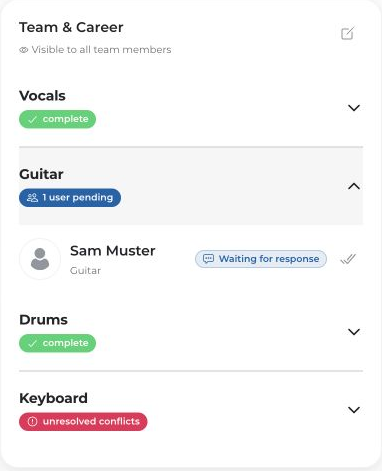
In Smart Mode, open places are requested by priority. If you set a timer, unanswered invitations are withdrawn when it expires; without a timer, connactz waits for a reply.
Manual confirmation and Auto-Accept
Manual confirmation required disables automatic acceptance through Auto-Accept. The invitee should respond themselves. It does not require an admin to approve their acceptance a second time.
With this option disabled, automatic acceptance is possible only if the member has allowed Auto-Accept for this project and their availability is declared complete and reliably verified by the current check. A calendar that merely looks empty is not enough.
Change the team
- In an open project, click the edit icon in the Team section.
- Add people or drag selected candidates to change their priority in Smart Mode.
- Review the selection and click Save.
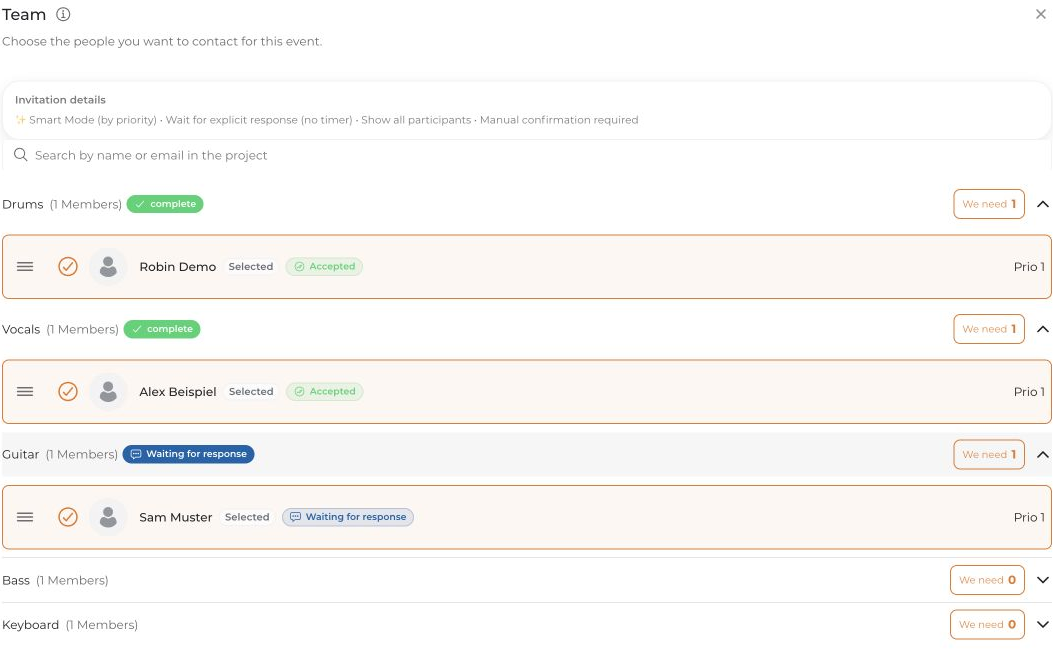
Deselecting people who have already been invited can withdraw their invitations or participation. Read the confirmation prompt. Changing priority does not automatically revoke participation already confirmed.


