As a project admin, you can create a contract for an event in your music project. The project must be open and contract creation must be enabled for its current plan; it is normally included in the music Gold plan.
Prepare the contract
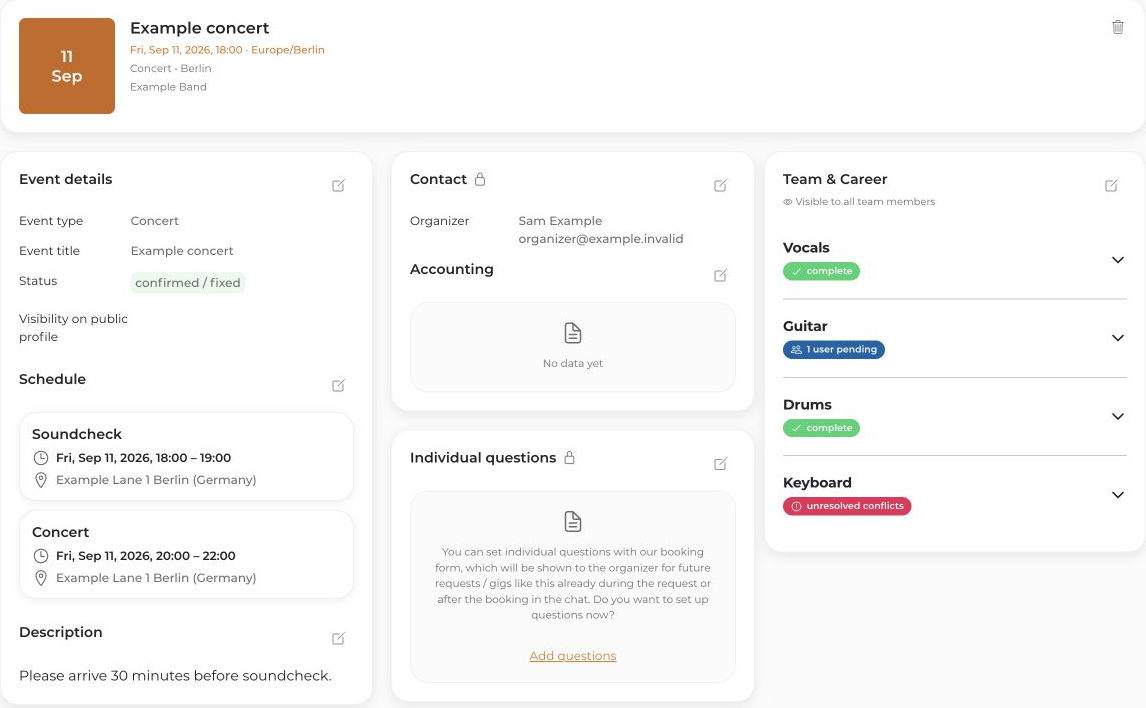
- Open the event in the calendar and check the organizer, venue, times, and fee. This contract flow cannot be opened for cancelled events.
- Scroll to Filespace and select Create → Contract.
- In the contract form, check the recipient and sender, payment details, template, and selected contract sections. Complete any missing details. You maintain the starting values for the sender and bank details in the project under Billing & Contact.
Preview and finalize
- Select Go to preview and review the entire PDF.
- Decide whether to enable Send contract & request signature. If enabled, check the recipient email address carefully. Without this option, the contract is created without sending an email.
- Select Create contract once the content and delivery option are correct. With delivery enabled, this starts the sending and signing flow.
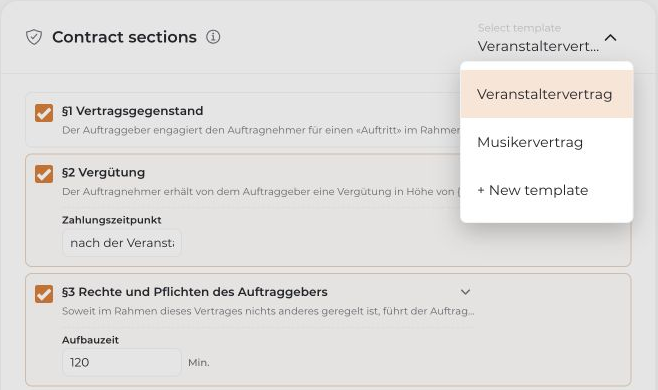
Check the parties, fee, performance period, payment terms, and cancellation terms before finalizing. A preview alone is not a finalized contract. Created contract documents appear in the relevant event's Filespace; access depends on the document permissions.
Important: A template is not individual legal advice or a guarantee that a contract is suitable for every performance and country.


