Use the central calendar to open project events and, with the required permissions, edit them.
Create a new event
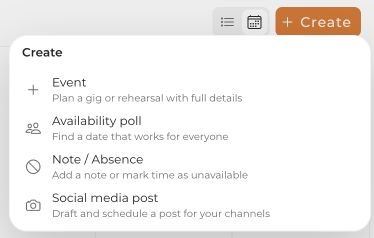
- Select Create → Event. Alternatively, select a calendar day and use its action for planning an event.
- Choose your project and enter the date, time, and required details.
- Review the details and confirm with Create event.
You must be an admin of an active project. Regular members can add their own absences but cannot create project events.
Edit an existing event
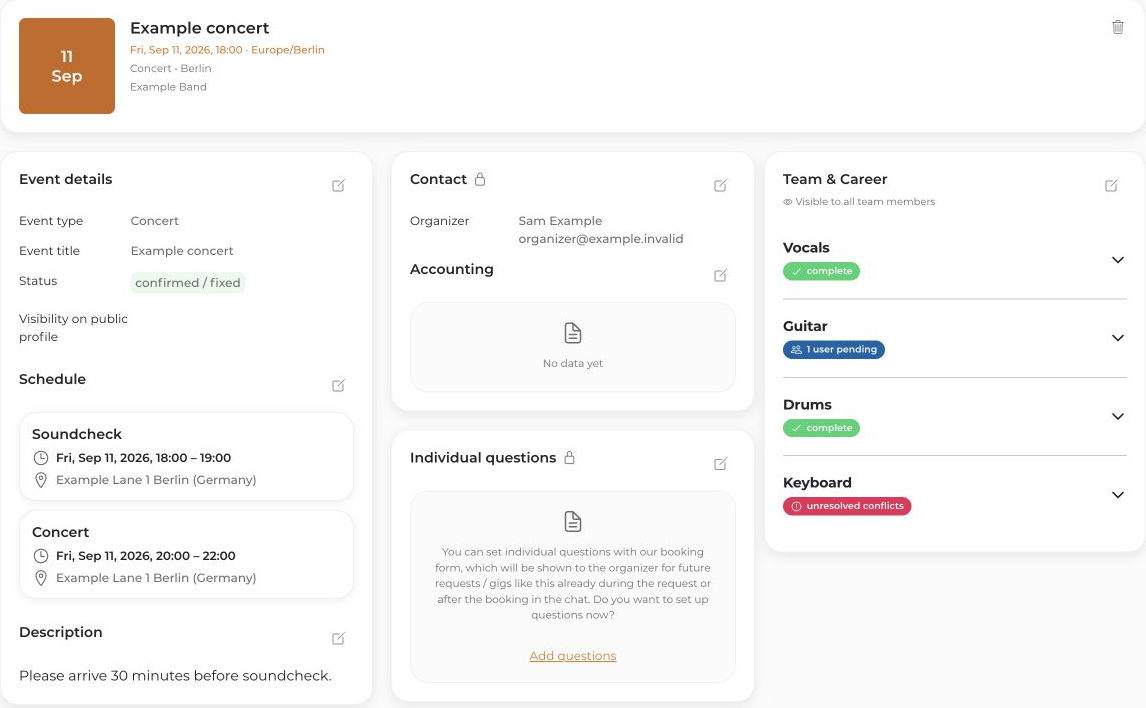
- Select the event. connactz opens its details; drafts have a separate detail view.
- As an admin of a project that is not completed, use Edit to change the available sections, such as event details or the team.
- Save your changes in the editing dialog.
Available actions depend on your role and the event/project status. Deletion is a separate action with confirmation. Edit appointments from a connected private calendar with its calendar provider.


