For an event with a fixed date, use the Schedule step after selecting the team to review and refine the times.
Read availability correctly
Background bars show known conflicts for selected team members, including tentative conflicts. They do not by themselves mean that the person has declined.
Calendar data is visible only to the extent the member has shared it for this project. Connactz events and manually entered absences can also produce conflicts; an external calendar is not required for this. Private appointment details are not shown.
No bars does not reliably mean available. Data, permission or a successful calendar lookup may be missing. Clarify uncertain availability with the person.
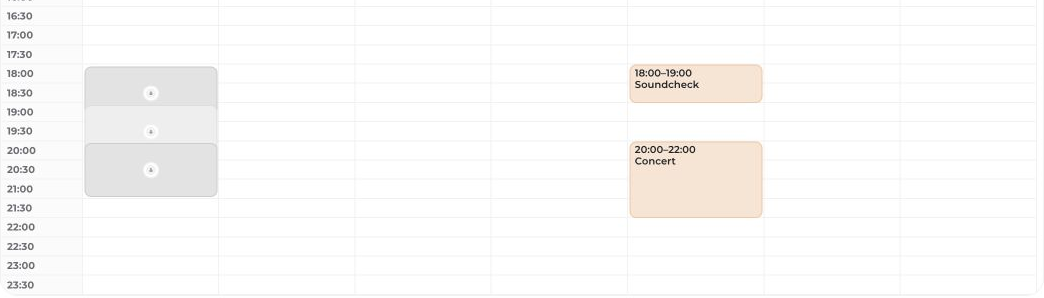
Edit times and schedule blocks
- Click and drag in the grid to select a time range.
- Move existing blocks or resize them using their edges.
- Open a block to edit its name, times and location if needed.
- Add further blocks if your event has multiple parts.
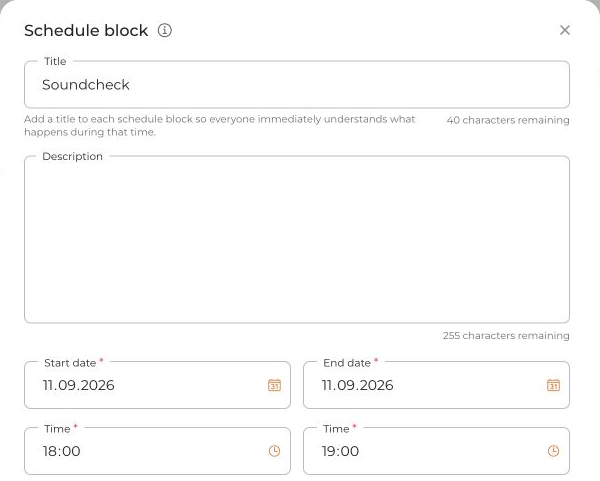
Several schedule blocks can belong to one event. The additional option to split them into separate events is a separate choice; review it before creating the event.
Finish with Create event; when editing an existing event, the action is Save. Team requests follow the invitation settings, not just the visible calendar bars.


