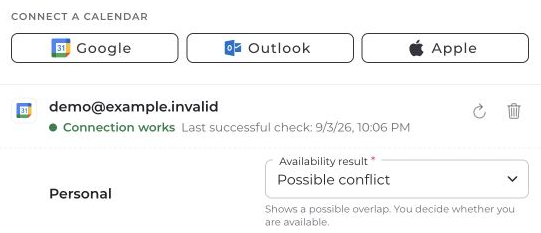
The Apple calendar connection in connactz requires your Apple ID and an app-specific password, not your regular Apple Account password. Follow Apple's app-specific password instructions to create one.
Check your credentials
- Open your avatar menu and choose Integrations. Under Your calendars, select Apple. For an existing connection with an authentication error, choose Reconnect.
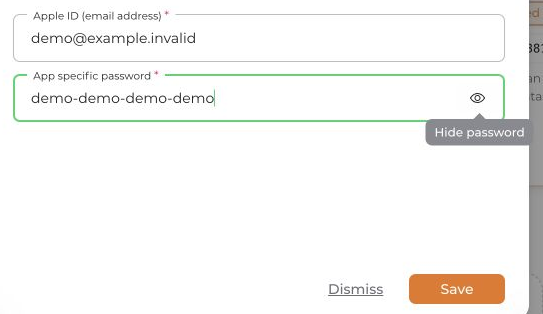
- Check your Apple ID and paste the app-specific password.
- Select the eye icon Show password. Compare the value with the generated password and remove any spaces accidentally copied at the beginning or end.
- Select Save.
Extra spaces are not removed automatically and can cause sign-in to fail. They are not the only possible cause.
If iCloud still rejects the credentials, you can generate a new app-specific password and try again. Changing your regular Apple Account password invalidates previously generated app-specific passwords. See Apple Support.
If the problem persists, send the error message and your device/browser details to [email protected]. Select Hide password first. Never share passwords or screenshots containing visible credentials.


