You can influence conflict checks through calendars, absences, and personal project settings. This is not a general switch that prevents new requests.
Add unavailable times
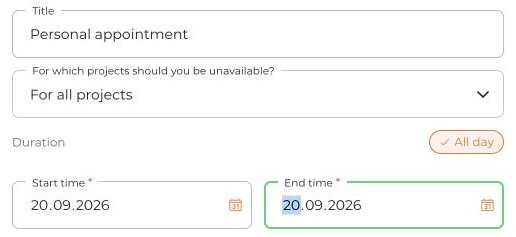
- Open the central calendar and select Create.
- If shown, choose Note / Absence, then Absence – a note does not block time.
- Check the time range, visibility, and project scope. Select Save.
With the iCal feed enabled, your own absences and notes may also appear in your calendar app. Treat the feed link like a password, including for entries marked Only me.
Check sharing and project priority
- Open the relevant project's settings and find My settings.
- Under Calendar privileges, choose whether Nobody, only Admins, or the Team can see your availability.
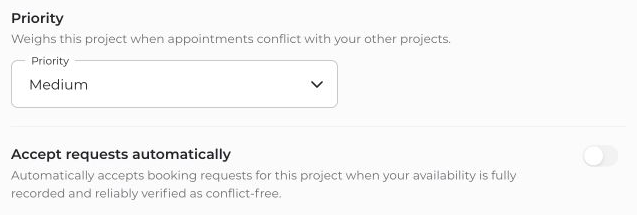
- Review Priority for conflict handling between your own projects and save your changes.
For external calendars, use Integrations to choose Busy, Possible conflict, or No conflict per subcalendar. This is independent of project priority. Hiding a calendar in the sidebar only changes the view.
A conflict-free period can be treated as reliably available only when your information is complete and the required calendar data can be read reliably. Connecting a calendar alone does not confirm your participation in an event.


